
Purchase additional chapters for any Discovery profile
You can now purchase additional chapters for any of a learner’s Discovery profiles directly from their Learner page in Insights Customer Platform.
Previously, chapters could only be purchased for a learner’s most recent profile. If they completed a new Insights Evaluator for an Insights Explore profile, you could no longer add chapters to their last Discovery profile. This update removes that restriction, giving you more flexibility to support each learner’s Discovery journey by purchasing additional chapters for their past and present profiles.
How to purchase additional chapters for any Discovery profile
Search for your learner
To start, select ‘Learners & Teams’ from your home page dashboard or menu tab.
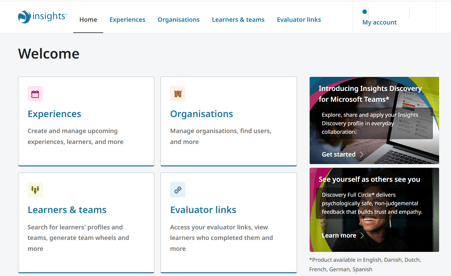
This takes you to the Learners & Teams page containing information about the learners and teams you have access to.
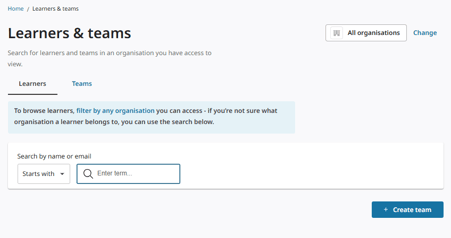
Type the name or email address of the learner whose profile you would like to archive into the search field.
The matching results will display in the Learners results.
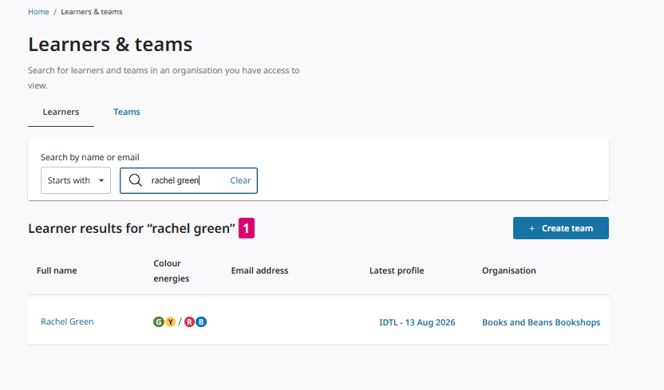
View Learner's Page
Click on the name of learner you wish to view.
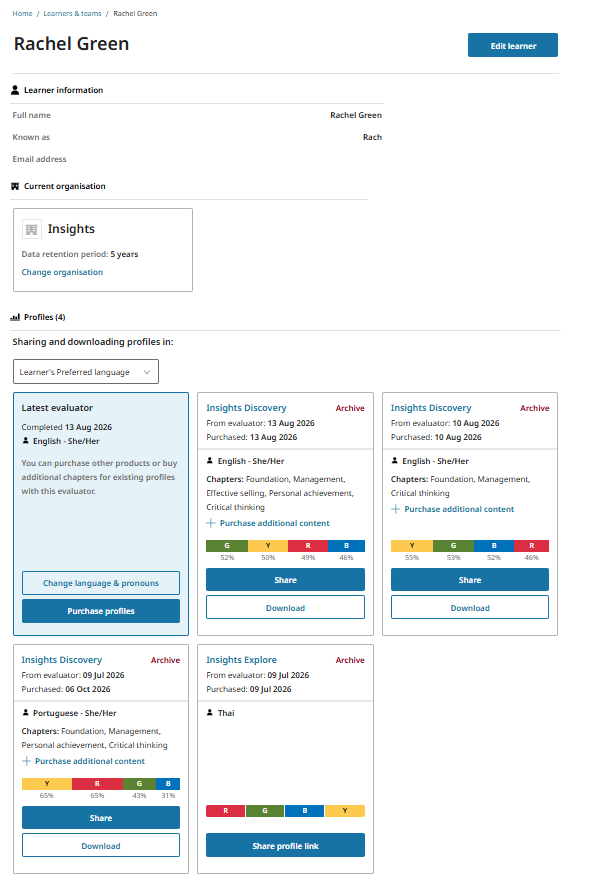
This takes you to the learner’s page that summarises the learner’s information, the organisation their profile belongs to and a record of the learner’s Insights profiles history under the Profiles section.
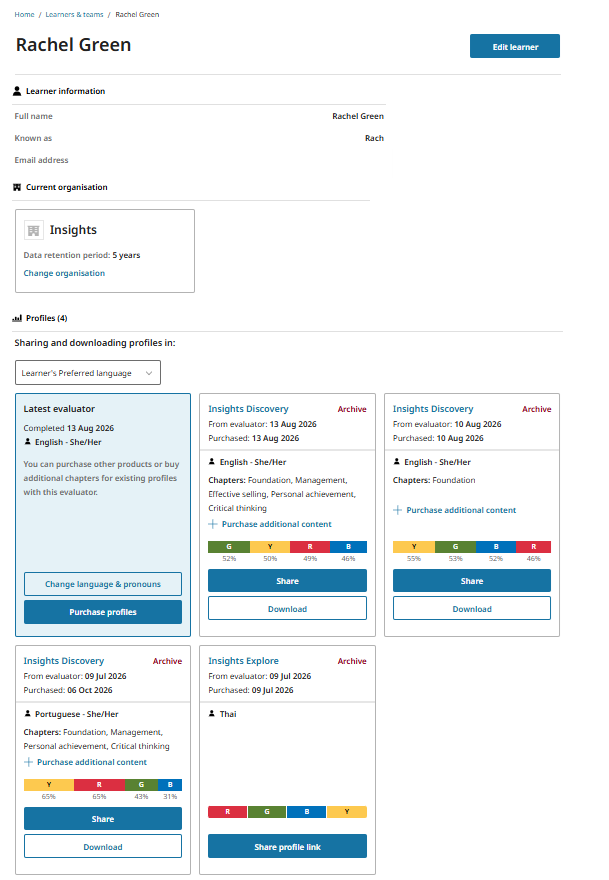
Purchase additional chapters from Discovery profile card
To purchase additional chapters for any Discovery profile, click on + Purchase additional content link on a Discovery profile card.
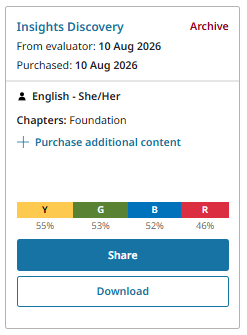
This opens the Purchase profiles page.
The Purchase Profiles page will show the learner and previously purchased chapters disabled.
A message will display saying to make additional chapter purchases for the learner profile, more chapters will need to be selected from Your basket chapter options.
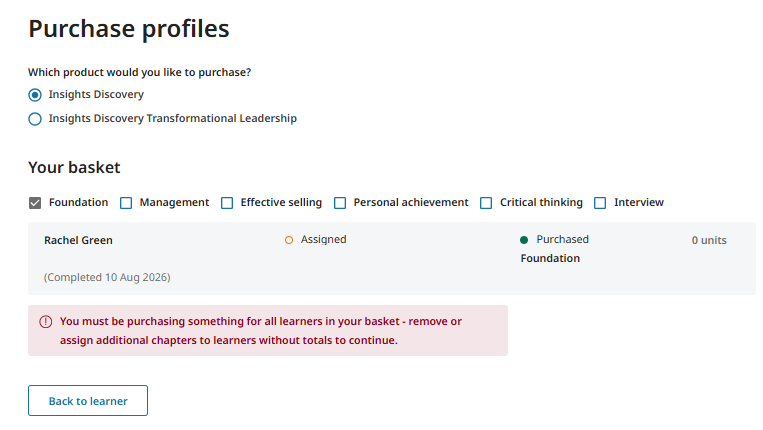
Select chapter check boxes of the chapters to assign to the learner.
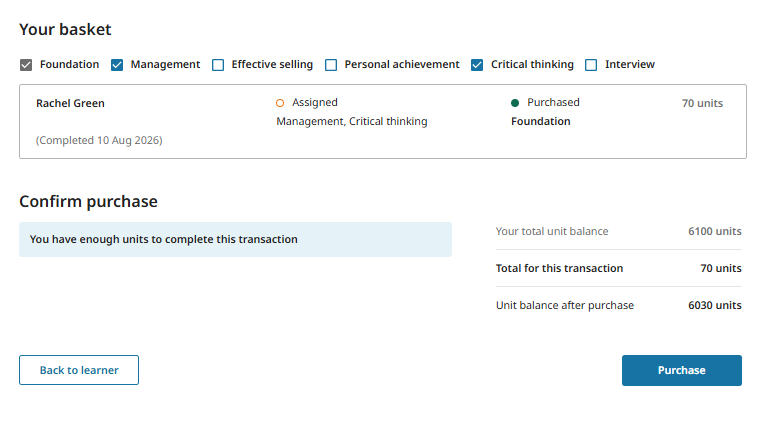
Upon selecting chapters to assign to the learner, these chapters will be shown under the Assigned column.
Click Purchase button to purchase assigned chapters.
The Generating profiles modal will display to confirm chapter purchase is in progress.
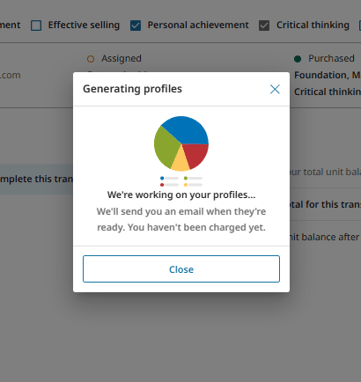
The Generating Profiles modal should close automatically.
If not, click Close button to close modal.
This navigates you back to the Learner's page, where the new purchased chapters will display under the Chapters section on the Insights Discovery profile card.
Upon successful purchase of the assigned chapters, a Purchase Confirmation email will be sent to the user who completed the purchase.
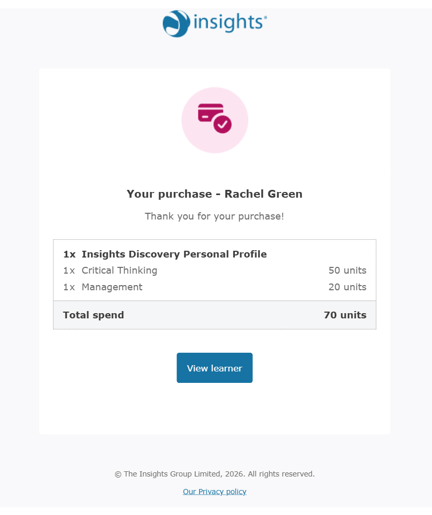
Purchase Confirmation Email
The Purchase confirmation email will show:
- Name of the learner chapters were purchased for
- type of chapters purchased
- number of chapters purchased
- unit cost of chapter purchased
- Total spend cost for the chapters purchased